
Glamcode Smm Panel
How To Use Glamcode SMM Panel
We launched our Social Media Marketing Automated Panel, also known as SMM Panel, named glamcodesocials.store. If you have not yet registered, please head over there now to register and start getting social media services at a price even cheaper than you are used to.
We have designed it to serve Nigerians in need of social media growth, monetization, and everything related to social media, including SEO for blogs and YouTube.
The problem is that Nigerians are barely conversant with this type of campaign, which is why vendors are making a lot of money. Hopefully, this article will teach you how to use an SMM interface using our own user-friendly platform. Mobile platforms may be a little different due to screen type, but they are basically showing you the same information. All you need to do is scroll up and down because on mobile, everything will readjust.
HOW TO GET STARTED
The first thing you need to do is register on the platform. Registration is straightforward. After registering, you will need to fund your account to activate the full experience. You can deposit as low as N2,000 to get started.
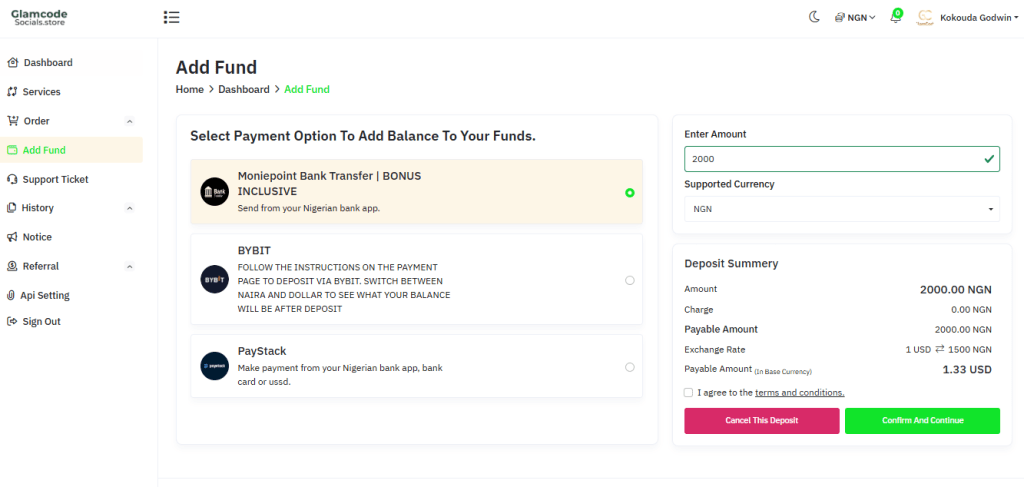
GLAMCODESOCIALS PAYMENT OPTIONS
Below is the payment page. As you can see, we have three options for you to use. The only automatic option is PAYSTACK.
The other two are manual options: you will make payments to the provided bank account or crypto wallet for the BYBIT option, then send us your receipt and username, and we will fund your wallet.
IMPORTANT PAYMENT NOTICE:
As startup promotions, those who will use the Moniepoint payment option will get a 20% bonus for every multiple of N5,000 they deposit
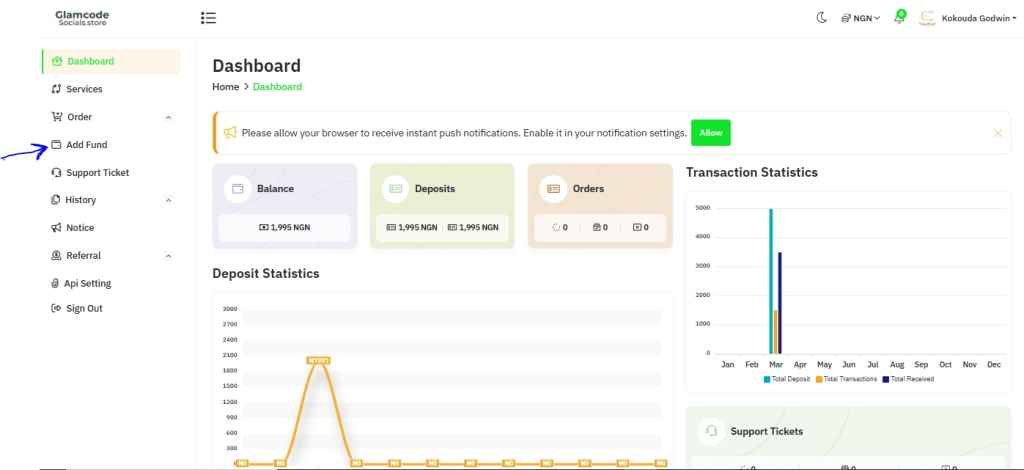
AFTER MAKING A DEPOSIT, you want to get down to business. Go back to the dashboard. You should now see your balance reflecting if you used the automatic payment (Paystack). For manual payment, after a few minutes of sending us your receipt, refresh the page and your payment should appear.
Now click ORDER to see a drop-down menu of options. Select NEW ORDER.
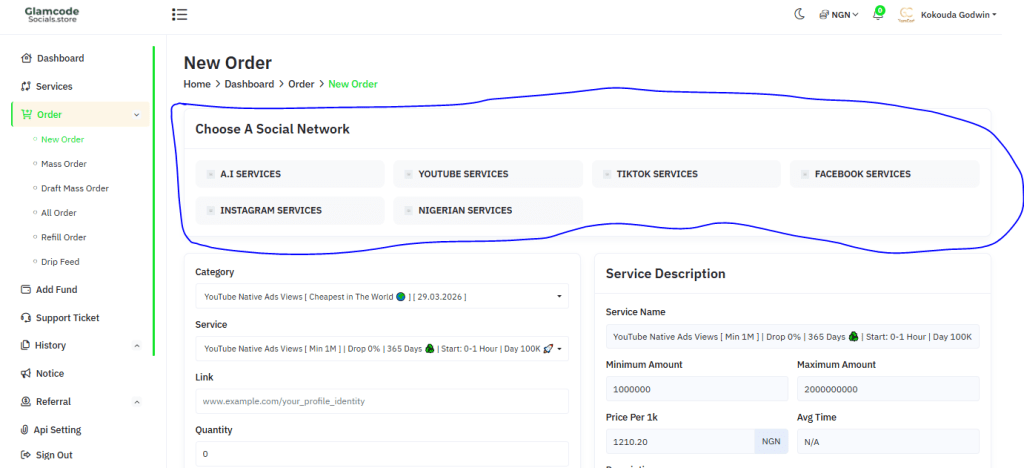
Notice the encircled portion. That is to make your experience easier. If you want to show only YouTube Services, for example, select or click the box labeled YOUTUBE SERVICES, and so on. If you want to see all services available on our platform, DO NOT CLICK ANY OF THE BOXES. If you have already clicked on any of them, refresh the page, then go straight to the CATEGORY BOX, click on it and a drop down of available services.
For any service you select, on the right-hand side, you can see a description box that shows quick details about the service. There is a bigger description box below for more details.
Each service works differently., Delivery time, start time, minimum order, maximum order, and for YouTube Watch hour, you must always watch the hour for the video length required, a YouTube watch hour service requires you to submit a 60-minute video or more. You must endeavor to check out these details so that they will guide you when you order.
PLACING AN ORDER
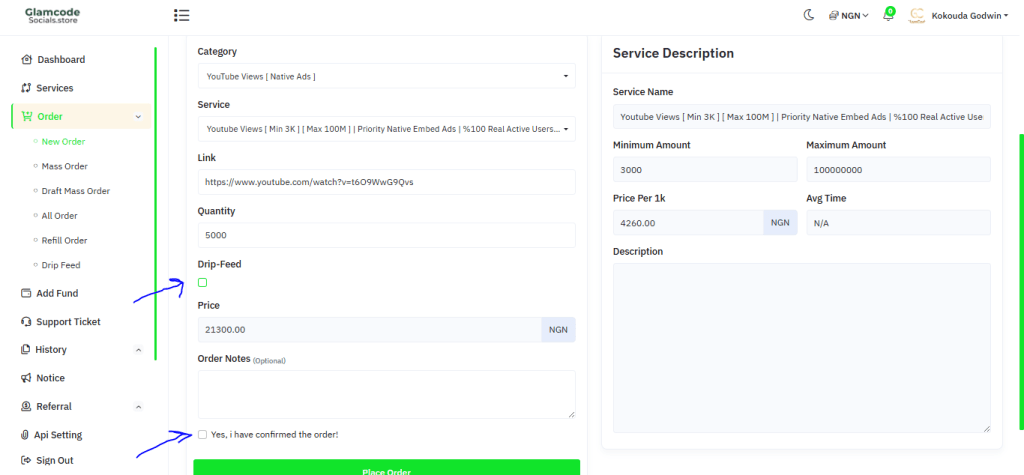
The screenshot above shows an order for 5000 YouTube Ads Views. The link to the video we want to promote was copied and pasted into the link box, and the quantity (5000) was manually entered. Sometimes, the DRIP-FEED box is active; you will need to uncheck it. (Drip-feeds simply means splitting the delivery. Say you want to order 5000 views, with drip-feed you can set it to deliver, say, 50 views every hour, or every 5hours, or every day, and so on. To let the service flow naturally, you uncheck the drip-feed. Drip-feed is not available for every service.
After you have done all these, you click place order. Automatically, the cost of the order will be deducted from your balance, and your campaign will begin, depending on the official start time, which is usually 5mins to sometimes 6 hours.
HOW TO REPORT ORDERS THAT ARE NOT DELIVERING OR TAKING TOO LONG.
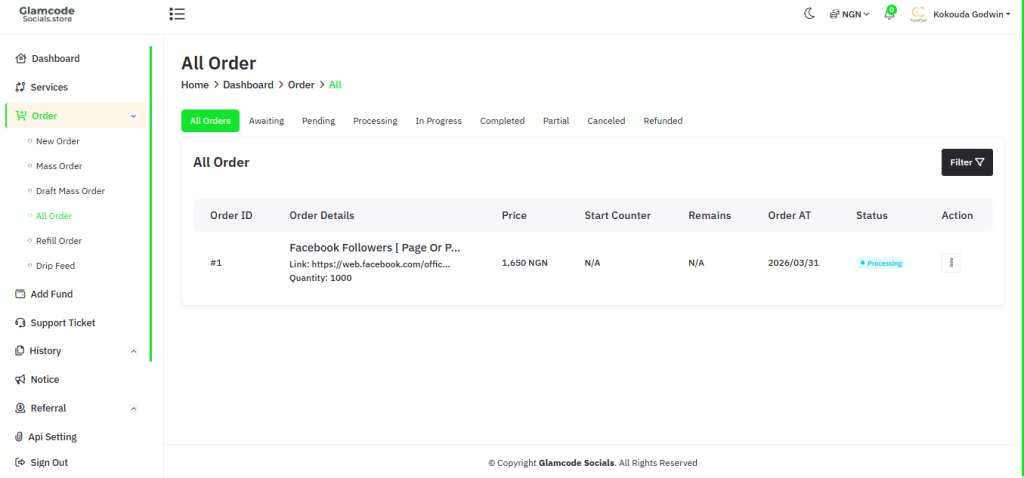
To confirm whether the order you just placed has been registered, go to the order history page. As soon as you submit your order, you will see a notification that says your order is successful.
To report an order, you need the order ID. As you can see in the screenshot above, under Order ID, we have 1, that is the order ID you will copy and send to us to report a particular order, so that we can be able to easily trace your order.
There is a Support ticket page, where you submit a simple form to request help.
And for those who prefare to reach us on whatsapp, our whatsapp line remains the same.
Feel free to ask us any other questions you may have regarding using our new automated social media service platform.